Title here
Summary here
The Animals Home page provides an overview of the current status of your livestock and quick access to record actives for your mobs.
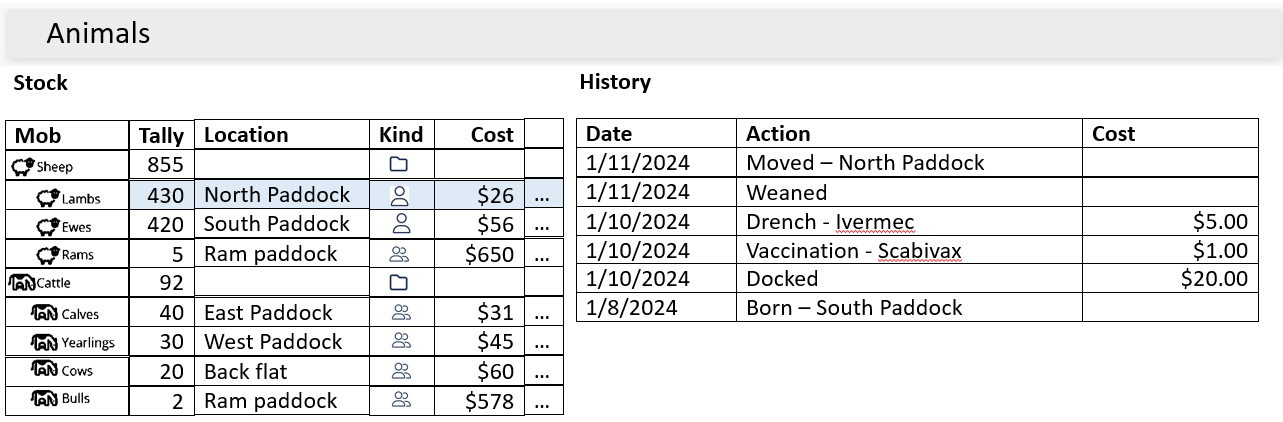
As the image above shows, the page is divided into 2 main parts as described below - the Stock Pane and the History Pane
In the left hand “Stock” pane of the page, the system displays a table of your active mobs. This provides a quick overview of the current status of your animals.
| Column | Definition |
|---|---|
| Mob | The name of the mob. If a mob has any Draft activities recorded against it, the symbol will be displayed after the name |
| Tally | The number of animals in the mob currently |
| Location | The paddock the mob is currently grazing |
| Kind | Shows what kind of mob it is: Contains individuals Represents a group Contains other mobs |
| Cost | The per-animal value of all the inputs to the mob |
| … | See Actions below |
The right-most column of the Action Pane provides an elipses (…) button which, which clicked, drops down to display a menu of actions you can take with a mob.
These are the available actions:
| Action | Description | Links to |
|---|---|---|
| Manage | Record an animal management activity | Animal Activity Dialog |
| Quick reconciliation | Quickly record changes in stock numbers (only for Group managed mobs) | Quick Reconciliation Dialog |
| Schedule | Schedule a task for you or your staff to perform on the mob | Scheduled Task Dialog |
| View Animals | Open the animal search page with the individuals in the mob selected (only for Individually managed mobs ) | Animal Search |
| Import | Import data for animals in the mob | Import Data |
| Export | Export data from animals in the mob | Export Data |
When a row in the Stock Pane is selected, the History Pane updates with a list of all the activities which have been recorded for a mob. This enables you to quickly view the history of the mob.
Clicking on a row in the History Pane will open the Record Animal Activity dialog so that you can edit the activity.
| Column | Definition |
|---|---|
| Status | Draft activities will display the symbol. |
| Date | The date the recorded activity occurred. |
| Action | The activity type. |
| Comment | The comment field from the activity. |
| Cost | The cost of the activity as recorded in the activity inputs. |