Title here
Summary here
The Animal Search page enables you to quickly find invidvidual animal records so that you can perform management action on them. The page provides a wide variety of ways to find animals so that even in a large heard, individual records can be quickly located.
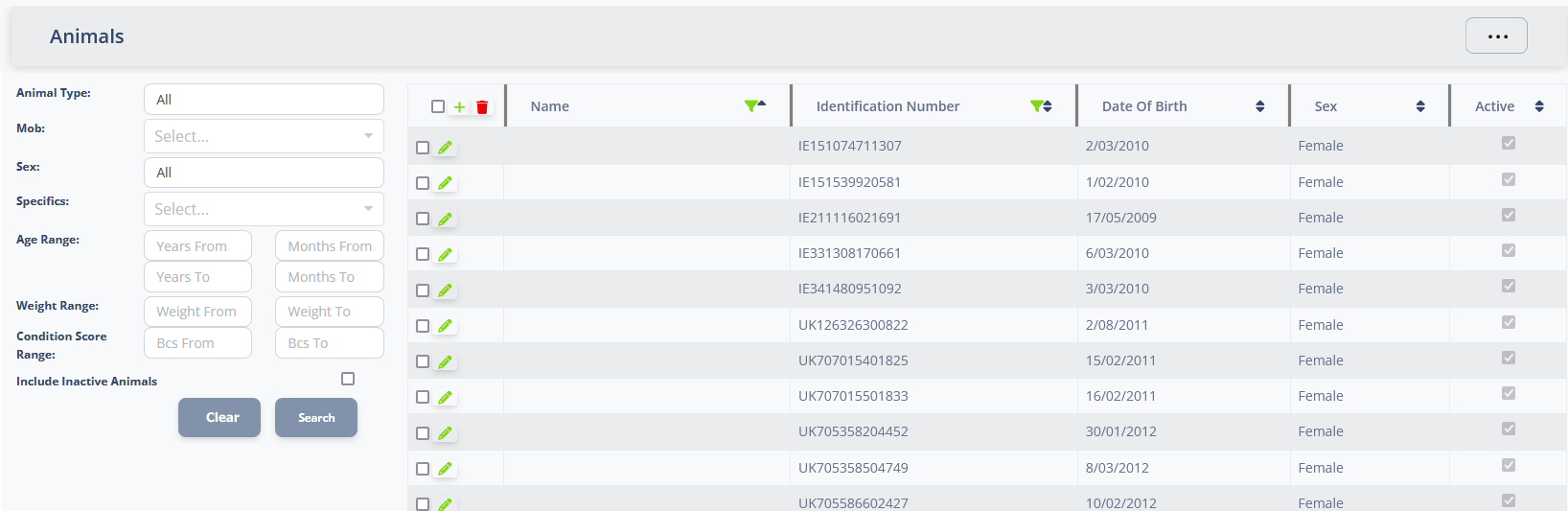
The image below shows the important parts of the screen.
The criteria pane contains the entry fields describe the search to executed. The different fields are combined to form a query that will match animal records where All the criteria are met.
The fields are described below:
| Field | Description |
|---|---|
| Animal Type | Specfic animal type to find, or All if this is not important. |
| Mob | Use the drop-down to select one or more mobs to serch within. Where a mob has sub-mobs, the sub-mobs will be included in the search |
| Sex | Filter by sex or All if this is not important |
| Specifics | Filter by additional criteria such as pregnancy status or cull list animals |
| Age Range | Specify a range of ages with a lower and upper number of years and months to filter by |
| Weight Range | Specify a range of weights with a lower and upper number of kgs to filter by (inclusive) |
| Condition Score Range | Specify a condition score range with a lower and upper BCS value to filter by (inclusive) |
| Include Inactive Animals | By default, inactive animals (dead, sold etc.) are not including in the result set. Check this option on to include these animals in the result set. |
| Clear button | Resets the search criter fields to their inital values |
| Search Button | Executes the search, displaying the result in the Results Pane |
The Results Pane contains the table with the Animal records found when the search is executed. The list supports the standard filter, sort and edit actions from the List Page Actions. Note that because the list uses infinite scroll to improve responsivness, alering the filter and sort values will cause the search to execute again and load all matching records to ensure the results accurately reflect your changes.
The edit action will take you to the Animal Editor where you can update details for the specific animal.
Use the checkboxes in the first column of the results table to select record to apply bulk actions to using the Action Menu.
Clicking the Action Menu button will drop down a list of actions that can be applied to the Animals selected in the results pane.
These actions are avaiable:
| Action | Description | Links to |
|---|---|---|
| Manage | Record an animal management activity for the selected Animal(s) | Animal Activity Dialog |
| Schedule | Schedule a task for you or your staff to perform on the selected Animal(s) | Scheduled Task Dialog |
| Movement | Create an animal movement for the selected animals (when enrolled in a traceability scheme) | Animal Movement Editor |
| Upload | Upload animals from one of the supported import formats | Animal Upload Dialog |