Title here
Summary here
The Bank Transactions page enables you to record bank transactions and import bank them from your online banking accounts so you can track the flow money into and out of your business.
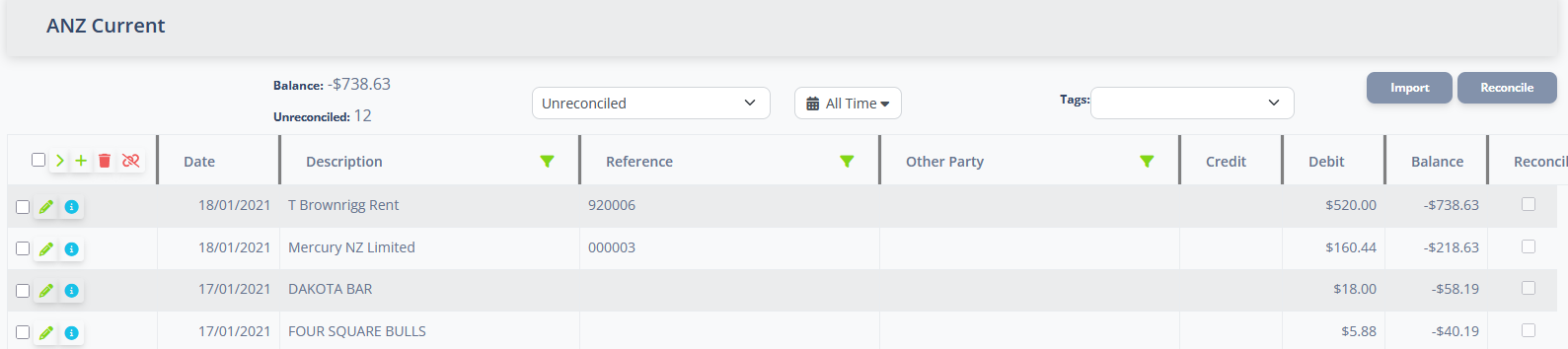
The Transactions List follows the standard List Page Actions paradigm.
The list has several additional actions:
| Column | Definition |
|---|---|
| Date | The date the bank transaction occurred. |
| Description | The description field from the bank statement. Because different banks record transactions in different ways, this may be a combination of fields from the bank statement. |
| Reference | The reference field from the bank statement. |
| Other Party | The Other Party the money came from or went to. |
| Credit | The money value for credit (positive) transactions. |
| Debit | The money value for debit (negative) transactions. |
| Balance | The balance of the bank account after the transaction is applied. |
| Reconciled | Displays whether the transaction has been reconciled or not. |
The bank transactions list can be filtered to just show transactions that are of interest. The filters are combined, so that for a transaction to be displayed, it must satisfy the criteria of all the filters that have been applied, plus any list filters that are in effect.
The date filter will specify a range of dates within which the transactions must fall. Multiple pre-defined ranges are available to select, or a custom range can be specified with an exact start and end date.
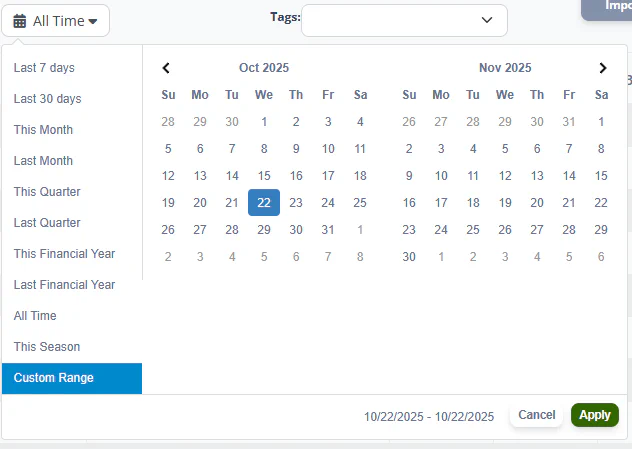
If Seasons have been defined, the current season will be available as an option.
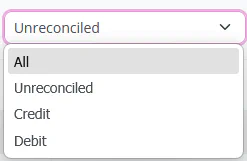
The type filter can be used to restrict the transactions to those of a certain type or status.
| Filter value | Meaning |
|---|---|
| All | No filter is applied. |
| Unreconciled | Only transactions with a reconciled flag set to false will be displayed |
| Credit | Only transactions with a positive value (money in) will be displayed |
| Debit | Only transactions with a negative value (money out) will be displayed |
The tag filter will restrict the display to transactions that have been reconciled and have been tagged with one of the selected tags.
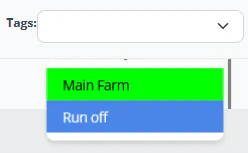
Multiple tags can be selected. A transaction only needs to be tagged with one of the selected tags to be included for display.
Although bank transactions can be added manually, it is much quicker and easier to import them directly. Go to your Bank’s online banking portal and download the transactions for the current month. iAgri bank statement import supports the Quicken (.qif) format and the Comma Separated File (.csv) format for many banks.
Now in iAgri, Click on the Bank Account Name to open the bank account. The system will display the Transaction page for the Bank Account. There are of course, no transactions to display yet.
Click the button at the top right of the page to begin the import process. The system will display the
statement import dialog: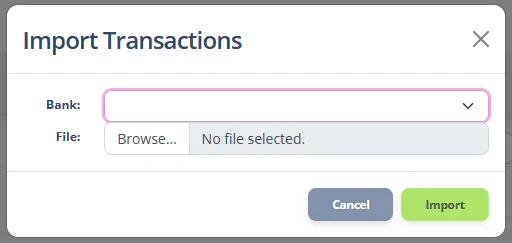
From the Bank dropdown, select the format of the statement you have just downloaded. Use the “Browse…” button to browse to your computer’s Downloads folder and select the file you have just downloaded from your bank. Click the “Import” button to import the transactions.
The system will import the transactions from the statement file and display them in the transactions list.
Click the button to open the reconciliation page