Title here
Summary here
To access the Bills page, use the
menu option.
The bills list displays a list of all the bills (supplier invoices) recorded in the system. From here you can view and edit bills and record new bills.

| Field | Meaning |
|---|---|
| Due Date | Last date for payment for the bill. |
| Pro Forma | The pro-forma status of the bill. |
| Invoice # | The invoice number of the bill. |
| Supplier | The Other Party that raised the bill. |
| Amount | Total amount due, including tax. |
| File | Hyperlink to the electronic copy of the bill. |
Bills that are overdue or are close to due are displayed in the TODO panel of the Dashboard
The Bills List follows the standard List Page Actions paradigm.
The edit action and create action will open the Bill Editor.
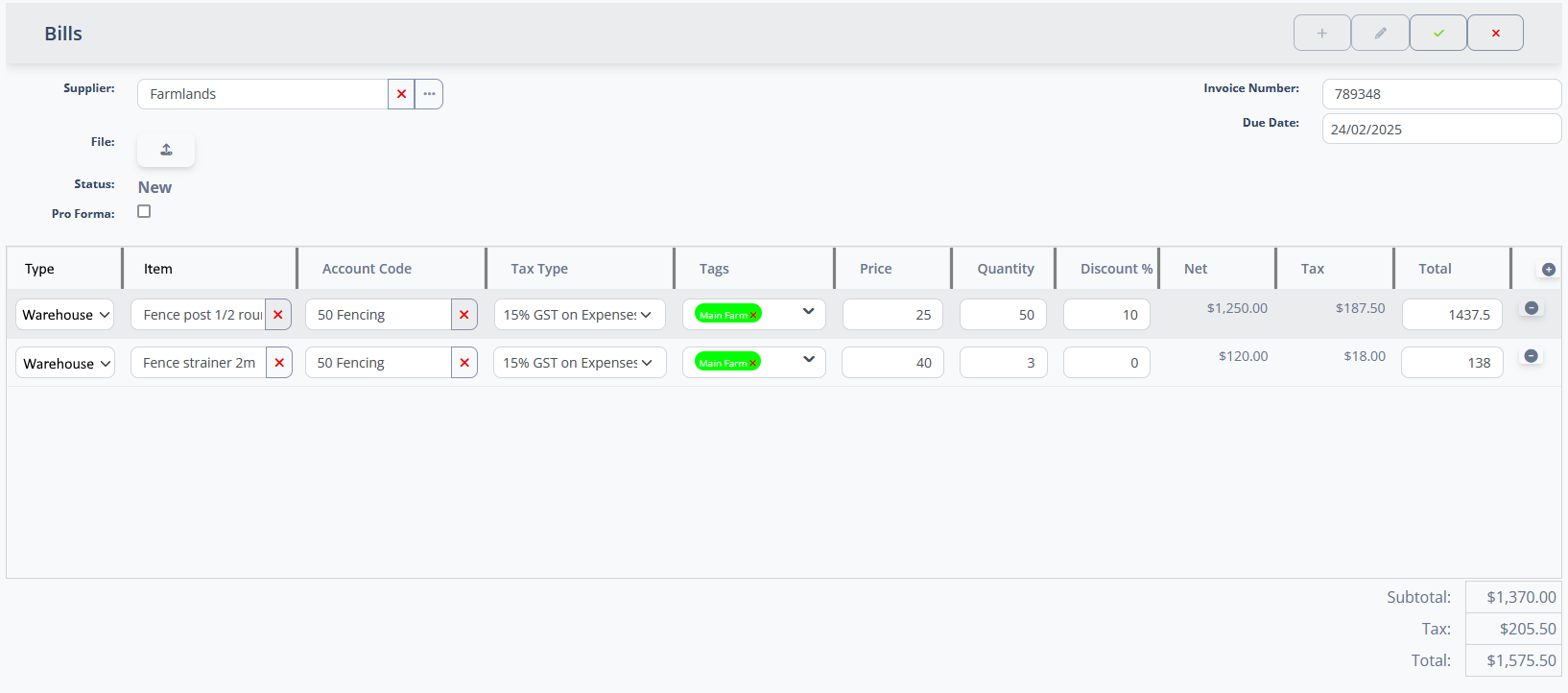
The invoice details panel contains the basic information about the bill:
| Field | Definition |
|---|---|
| Supplier | The Other Party record of the supplier that raised the bill. [type-ahead] |
| File | You can attach a scanned or emailed copy of the bill to the record, clicking on this field. |
| Status | The current status of the bill. |
| Pro Forma | The pro-forma status of the bill. |
| Invoice Number | The invoice number from the bill, if known. |
| Due date | Date the supplier expects payment for the bill |
A bill can be marked as “Pro Forma”. This means that it is a draft bill, and values from it will not be included in any financial statements, reports or in payments reminders on the Dashboard. You can use Pro Form bills to record bills that you expect to have to pay, but have not received yet.
The system will also generate Pro Forma bills for wage & salary payments, sales tax returns and other tax returns to help you plan for their payment. You can remove the Pro Forma status from these system generated bills to add them to the financial record of your farm.
A bill change be changed to and from Pro Forma by toggling the Pro Forma check-box.
The Status field displays a simple overview of the financial state of the bill. These are the possible statuses for a bill:
| Status | Meaning |
|---|---|
| New | The bill is being edited and has not been saved yet. |
| Paid | The bill has been paid in full. |
| Due | The bill has not been paid in full yet, and the Due date is in the future. |
| Overdue | The bill has not been paid in full yet, and the Due date is in the past. |
The bill line items record details of individual items in the supplier invoice. Each line item is backed by a Transaction that records the financial impact of the line item.
Optionally, each line item can be linked to a Stock Item record in the system. This allows you to track not only the financial impact of purchases, but also account for the resulting changes in the stock levels of input product to your farm.
| Field | Definition |
|---|---|
| Type | Drop-down list of the available line item types. |
| Item | The entity that this line item relates to. This value and input field depends of the value of the Type field, as described below. |
| Batch | When a Stock Item is selected in the Item field, the Batch provides a way to specify the batch name for the Warehouse Product record. |
| Account Code | The account code that the line item transaction will be posted to. [type-ahead] |
| Tax Type | The sales tax rate that applies to the line item. |
| Tags | Financial tags that apply to the line item. |
| Price | Per-unit cost of the line item, exclusive of tax. |
| Quantity | Number of units of the line item. |
| Discount % | Discount percent applied to the line item. |
| Net | Calculated total cost for the line item, exclusive of tax. |
| Tax | Calculated tax amount for the line item. |
| Total | Total value for the line item, inclusive of tax. |
| Adds a new, blank line item. A line item may be deleted using the action. |
Note
The total value will be re-calculated when there are changes to the Price, Quantity Discount % and Tax Type fields. If a new value is entered in the Total field, the system will re-calculate the Price field to balance the equation.
In iAgri, bill line items can be linked to the item that caused the financial transaction. This is part of what enables iAgri to track expenditure very closely to produce accurate reports and forecasts of your farm’s financial performance. The line item type determines what type of items can be linked to the line item.
The following types are supported:
The line item has no related entity and the item is a simple textual description. Use this if there is no item in iAgri this transaction relates to.
The line item is related to a Stock Item in the system. The Item field will be a type-ahead field that allows you to select a stock item.
When a stock item is selected, the Account Code, Tax Type and Price fields of the line item will be filled from the stock item, if defined.
When the bill is saved and not Pro Forma, a corresponding Warehouse Product record will be created for the purchase, increasing the on hand balance of the Stock Item.
The Batch field can be used to record the batch name / number for this batch of product entering the Warehouse. This is useful for tracking product expiry or for tracking items purchased for a particular project. It is not required if it’s not useful.
Once this warehouse product record is created, you will not be able to delete the line item or the bill without first deleting the related warehouse product record.
The line item relates to a wage payment. The item field will be a drop down that allows you select any wage payment that doesn’t already have a related line item.
The line item relates to Sales Tax Return. The item field will be a drop down that allows you to select any sales tax return that doesn’t already have a related line item.
The totals fields re-calculate as changes are made to the line items. The totals fields are:
| Field | Definition |
|---|---|
| Subtotal | The sum of the Net value for all line items. |
| Tax | The sum of the Tax value for each line item. |
| Total | The sum of the Subtotal and Tax fields. This is the total value for the Bill. |