Title here
Summary here
The Reconciliation page enables you to reconcile bank transactions by linking them to Account Code, Sales Tax Rate and Other Party records. The process of reconciliation is critical to understanding how money was earned and spent in your business.
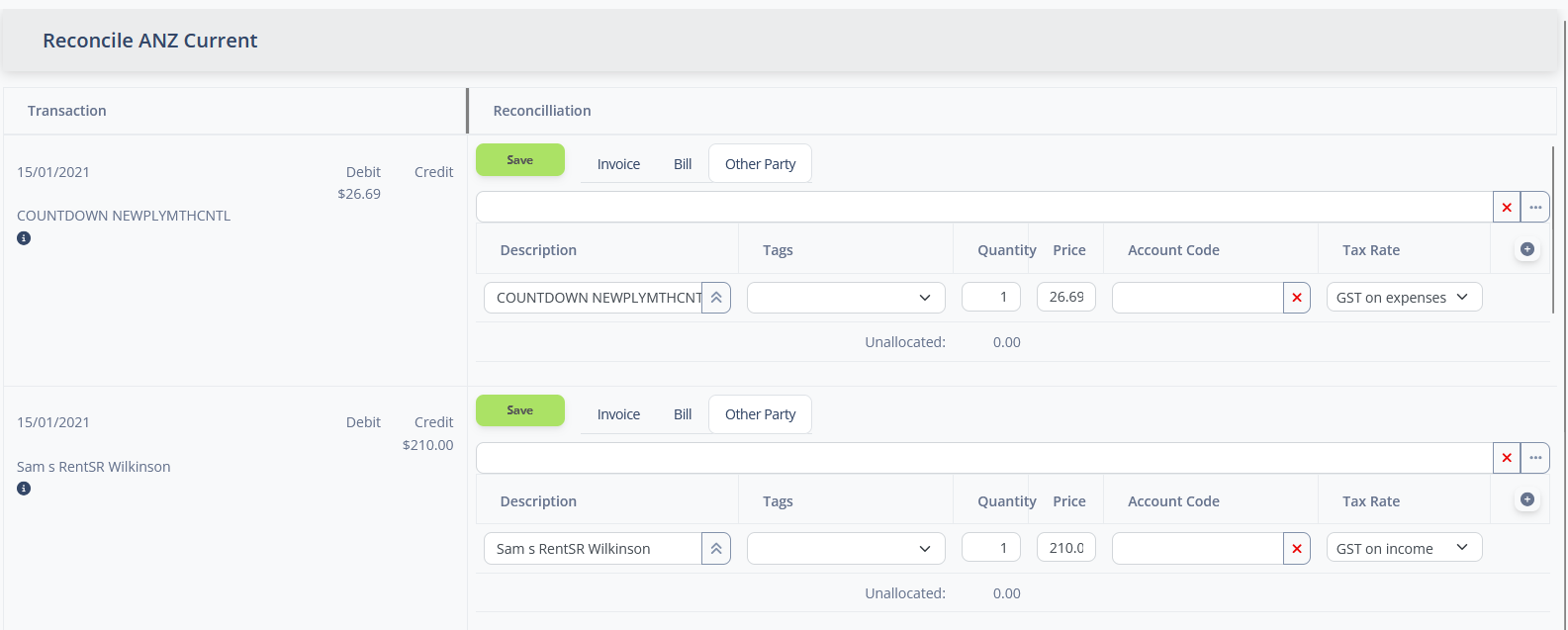
The page will list all unreconciled transactions for a bank account, and give you the option of how each transaction will be reconciled.
Each row of the reconciliation list displays the bank transaction details in the left pane and the reconciliation values in the right pane.
The bank transaction details pane displays the date of the transaction, the description, and the debit or credit value of the transaction.
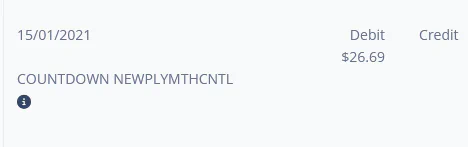
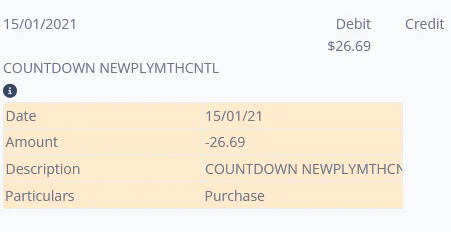
Because different banks record information about a transaction in different ways, this will often be a subset of the information available from the bank statement. Clicking the icon will reveal all the available information for the transaction.
The reconciliation pane provides the functions to record one or more bank transaction line items for a bank transaction.
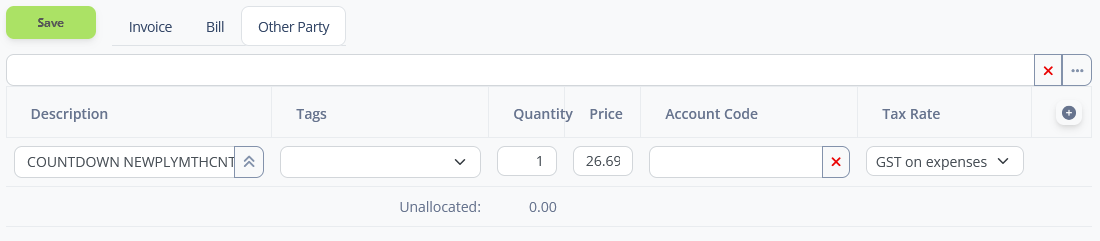
Reconciling a bank transaction will create one or more bank transaction line items (splits), each of which is linked to an External Transaction, which records the Account Code and Sales Tax Rate records for the line item. In this way, a single bank transaction can be split into multiple line items, each of which allocates a portion of the transaction to a different account code Account Code or Sales Tax Rate.
| Element | Purpose |
|---|---|
| Save button. | Saves the reconciliation information for the bank transaction. |
| Invoice / Bill / Other Party tab | Switches the source of the transaction |
| Transaction Source | [type-ahead] Described below. |
| Description | Describes the line item. |
| Tags | Associates on or more Financial Tag items with the line item. |
| Quantity | The number of items bought or sold. |
| Price | The unit price of each item bought or sold. |
| Account Code | The Account Code to file the line item under. |
| Tax Rate | The Sales Tax Rate that applies to this line item. |
| button | Creates a new line item (split) for the transaction. |
| button | Deletes a line item from the transaction. |
| Unallocated | Displays the difference between the sum of the value of all the line items and the value of the bank transaction. |
Note
A reconciliation can only be saved when an account code has been assigned and the unallocated value is zero.
The transaction source is a [type-ahead] that can be used to link the bank transaction to the entity that generated the transaction.

The transaction source will be either an Invoice, and Bill, or an Other Party. The Invoice / Bill / Other Party tabs above the type-ahead can be used to change the transaction source being searched for.
When the reconcile page is loaded, the system will try to pre-fill the reconciliation pane with the most likely source of the transaction. The logic works like this:
If an existing Invoice or Bill is found, the system will pre-fill the line items (splits) for the bank transaction with the line items of the Invoice or Bill. Here is an example of a Bank Transaction that has been matched against an existing Bill:
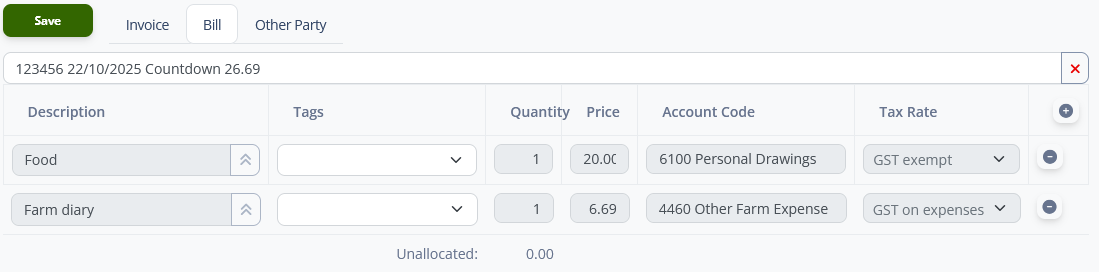
If the system does not find a matching bill or invoice, and you think there is one that should have been matched, you can use the type-ahead to search for a bill or invoice.
Note
Proforma Invoice and Bills will not be considered for matching against bank transactions.
If there is no Bill or Invoice the bank transaction should be matched against, it can be matched directly to an Other Party record. If the system finds a match with an Other Party, it will use the Account code for withdrawals or deposits as a default for the bank transaction line items.
If the system has not matched the other party, or has matched the wrong one, you can type part of the name of the Other Party in the type-ahead and the system will search for it.
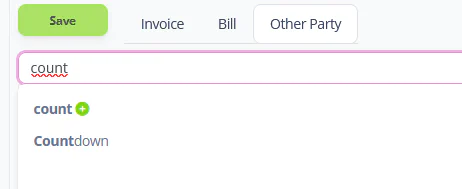
In the case where there is no existing Other Party to match against, you can use the type-ahead to enter the name of a new Other Party to match the transaction to. The system provides some shortcuts to help with this.
The button will copy the value from the description field and use it to generate a new Other Party:

If you use the mouse cursor to select only part of the description and then click the button, the selected text will be copied up to create a new Other Party:

Note
The icon indicates that the Other Party is a new entity.
The button in the type-ahead can be used to configure the Other Party record, adding Transaction matchers to the record to help the system match the other party to bank transactions in future.