Title here
Summary here
iAgri provides a central dashboard for your farming operation, combining the data from multiple source to provide a coherent picture of the state of your business. An important aspect of this is the ability to quickly and easily import data from external sources. The file import function enables you to do this from any screen in the system.
The import button on the Nav Bar provides access to the Import File action from anywhere in the system.

Clicking the import button will invoke the Import File dialog from where you can select a file to import and specify how the system should interpret the data in the file.
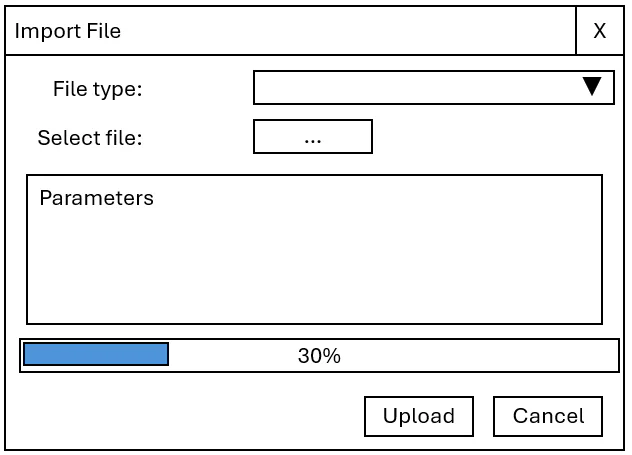
From the File Import dialog, select the type of the file you want to import, then use the Select file button to browse and select a file to upload.
Some file types have additional parameters that must be entered before you upload the file. These will be displayed below the selected file.
Enter any required parameters and click the Upload button. The system will commence the file upload operation and display the progress of the upload process.
When the upload is complete, the system will process the file based on the selected file type and any additional parameters. You will be notified of the outcome of this processing via the Notifications widget.
You can also invoke the Import File function by “dragging and dropping” a file from Windows explorer directly onto the Nav Bar. When you drag a file over the iAgri window, the Nav Bar will display a drop zone.

Dropping the file in the drop zone will cause the system to display the Import File dialog for you to specify a file type and additional parameters before completing the upload.
Your iAgri Site has a unique email address that can accept emails with attached files for import. Simply forward any emails with attached files that you would like to import to the unique address for your site.
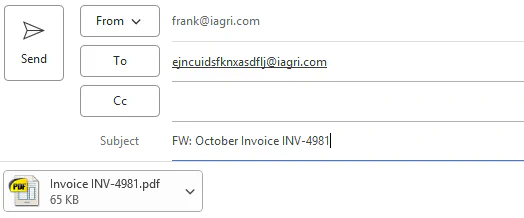
When the system receives an email at this address, it will extract any attached files and notify you via the Notifications widget. Clicking on the notification will invoke the Import File dialog so that you can complete the import.
Note:
Your unique email address can be found in the System Settings page.
The Import File function can process the following type of files: