Title here
Summary here
A lot of the information that iAgri manages will be displayed as a “list page”. This is a page that displays a list of records in a table format. Wherever possible, the system provides a standard set of list actions that can be applied to a list page.
These standard actions are located in the column headers for the record list. Here is an example, with the actions labelled.
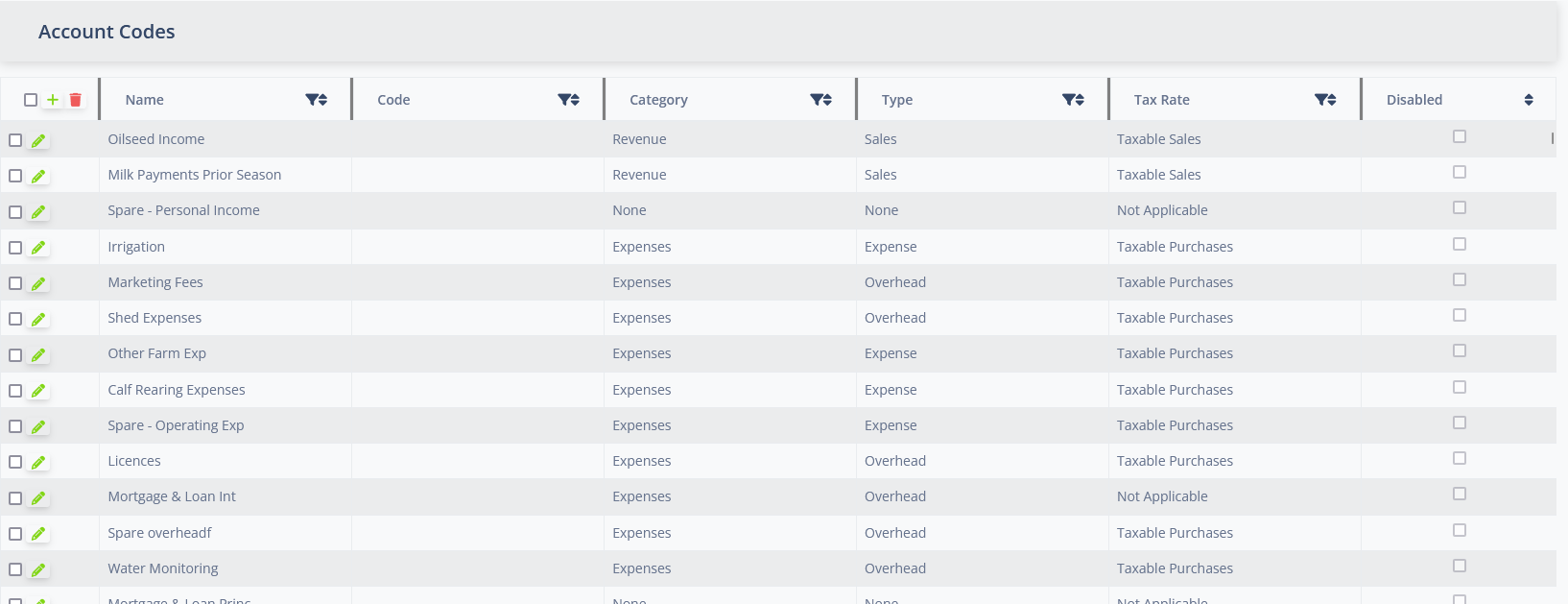
The sort action provides a simple method to order the list. By clicking in the sort button, the change from no sort order, to ascending order, to descending order and back to no sort order.
The list be only be sorted on one column at a time.
The filter action provides a simple method to filter the list. By clicking on the filter button, the system will display a filter options drop down that allows you to enter a filter value.
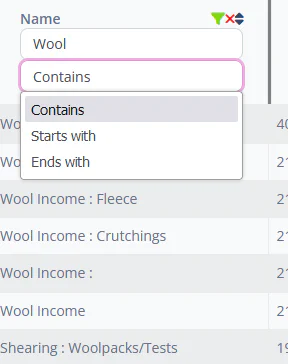
By typing a value in the text box, the system will filter the list to only show records where there is value in the filtered column that matches the filter value. The combo box can be used to change the way the records are matched to “contains”, “starts with” or “equals”.
Clicking the filter button again will hide the filter options drop down, but not remove the filter.
Clicking the clear filter button will remove the filter and show all records in the list.
The list can be filtered by multiple columns at the same time.
The select action is a checkbox that enables you to select records in the list. Click on the check box to select an individual record, or use the select all checkbox in the top left column header to select all records in the list. Clicking the select all checkbox again will toggle the selection of all records in the list between selected and unselected .
Selecting one or more record will enable the delete action . For some list pages there are aditional actions that require a record to be selected before they are enabled.
The edit action will open a record for editing.
For simple record types, the system will display an in-place editor. That is, the fields in the list for that record will become input fields that can accept data entry.

For more complex or larger records, the system will open a modal dialog that displays the record for editing.
For the most complex records, the system will navigate to a separate edit page for the record.
To create a record, use the New record button at the top of the page. The system will display an editor for you to enter the details of the record, as for editing an existing record.
Use the Save record button to save the changes or the Cancel changes button to discard the changes.
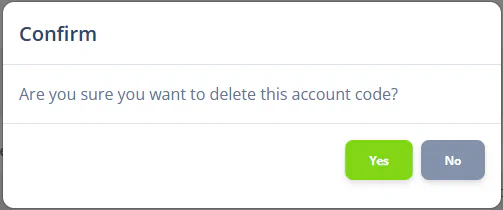
To delete a record, use the checkbox in the row of the rate you would like to delete to select it. Then use the Delete record button to delete the selected rate. The system will prompt you to confirm the deletion before the record is removed from the system.
Most list pages will allow you to select multiple records for deletion at once.