Title here
Summary here
The iAgri system uses a consistent user interface across all modules. This guide will help you understand the basics of the iAgri user interface.
The image below shows a typical iAgri page, with the primary navigation elements labelled.
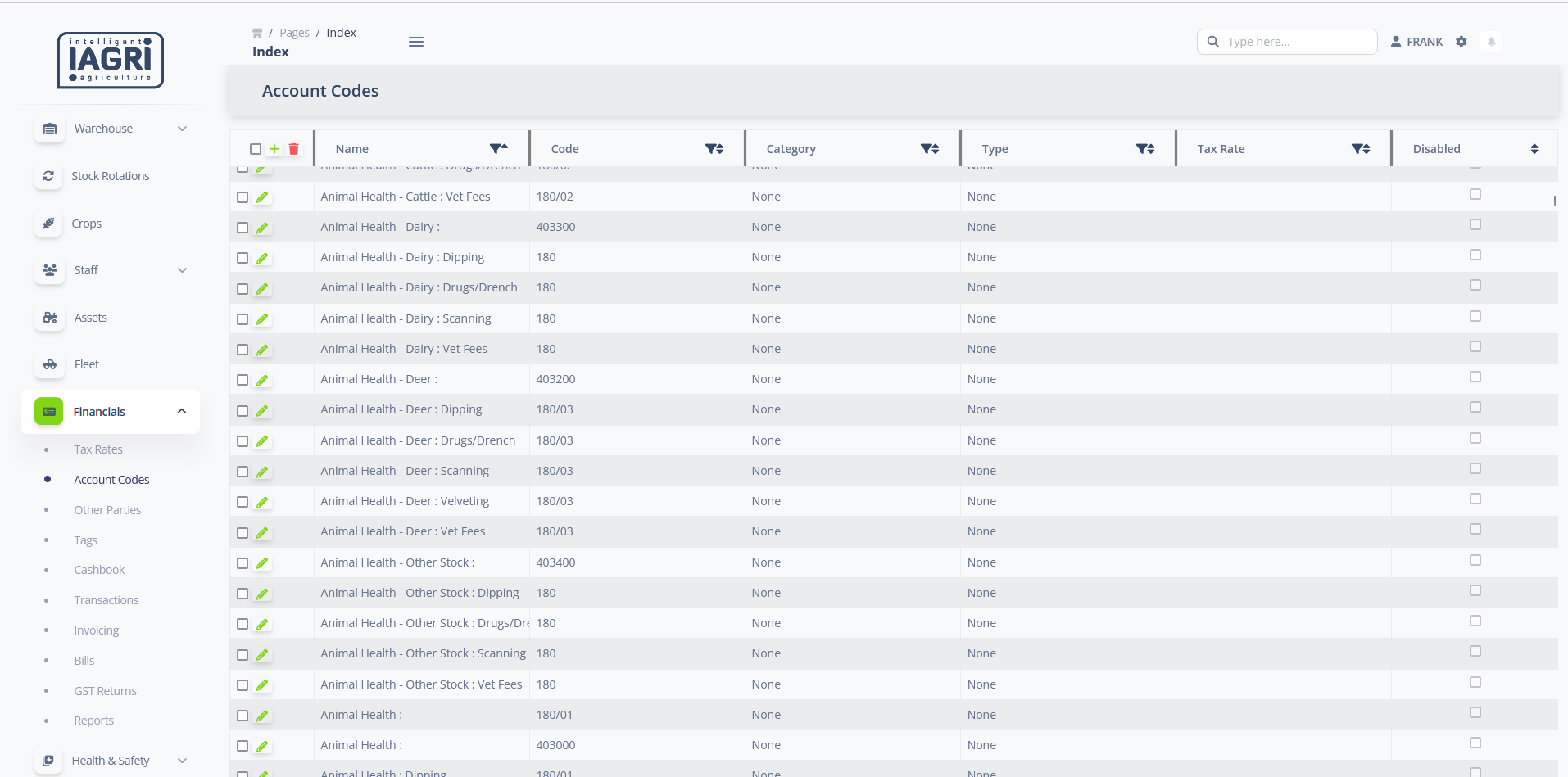
The function of these elements is described more fully below.
The Nav Menu sits on the left of the screen and groups the main system functions in a hierarchical menu structure. The top level menu items will expand to show sub-menu items when clicked. When an item is selected from the Navbar, the corresponding page wiill open in the Content Pane. The Nav Menu item and any parent item will be highlighted to show the current selection.
The Nav Bar sits at along the top of the screen and groups system wide actions and navigation elements.
Breadcrumb Trail
The Breadcrumb Trail provides a trail of links to the current page.
Each link in the trail will take you up one level in the menu hierarchy, back to the Dashboard at the top.
Nav Menu Toggle
The Nav Menu Toggle hides and displays the Nav Menu.
When the Nav Menu is toggled off, it will display as a ribbon on the left hand side of the screen, making more room for the content pane.
When using iAgri on a smaller screen, such as a mobile phone, the Nav Menu will be hidden by default,
and clicking the Nav Menu Toggle will make it visible so that you can navigate the system.
Search Box
The Search Box can be used to perform system wide searches for information.
Text entered in the Search Box will match against all modules of the system to find relevant information.
Profile Menu
The Profile Menu can be used to access your user profile, change your password, and log out of the system.
If you have logins to multiple Sites, the other sites that you have access to will be available in the menu so that
you can easily switch between sites.
Settings Button
The Settings button takes you the the Preferences page, where you can configure your preferences for the system.
The Title Bar displays the name of the current page. For some pages, action items such as buttons and menus that apply to the current page will be displayed at the right hand side of the Title Bar.
The Content Pane contains the current working page. This is where you will enter data, view reports, and perform other actions.
The Content Pane may display lists of information as in the example above, forms for data entry, report interfaces, or other types of information.