Title here
Summary here
To Migrate from your existing iAgri GO account (also known as Landmark Online), you will first have to register for a new iAgri Dashboard account.
When you have completed the subscription payment step, the system will present you with the Initial Configuration page:
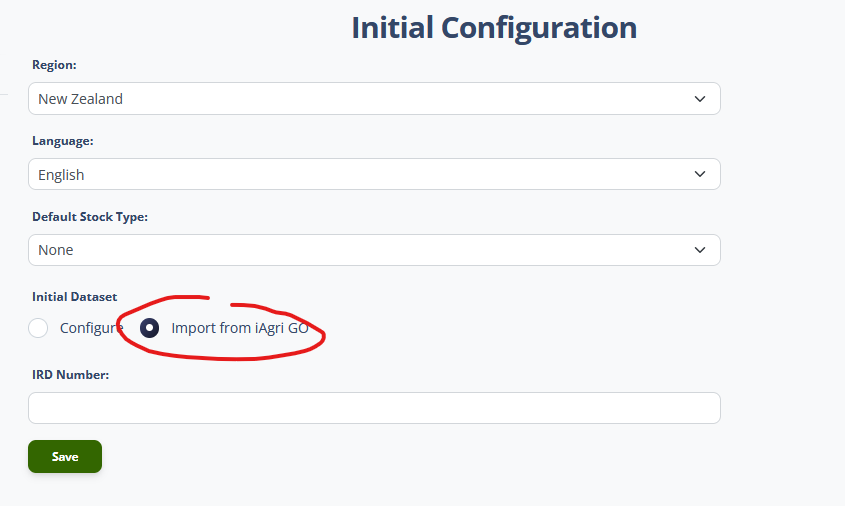
Review the and Region, Language settings, which will have been configured during the subscription process.
If your farming system involves livestock, you may wish to select a Default Stock Type. This is not a critical step, it just provides a default value for the system when it presents some of the data entry forms for livestock actions later on. It is safe to this as “None”.
Check the “Import from iAgri GO” checkbox. This will hide most of the other fields on this page. These values will all be imported from your iAgri GO account.
The only other data item to enter is the Income Tax ID (IRD number) for your business. This will be used when generating some of the forms required for tax returns. If you do not know this number, it can be left for now and entered in System Settings later.
Click the “Save” button. The system will save the entered values and return the iAgri GO import page:
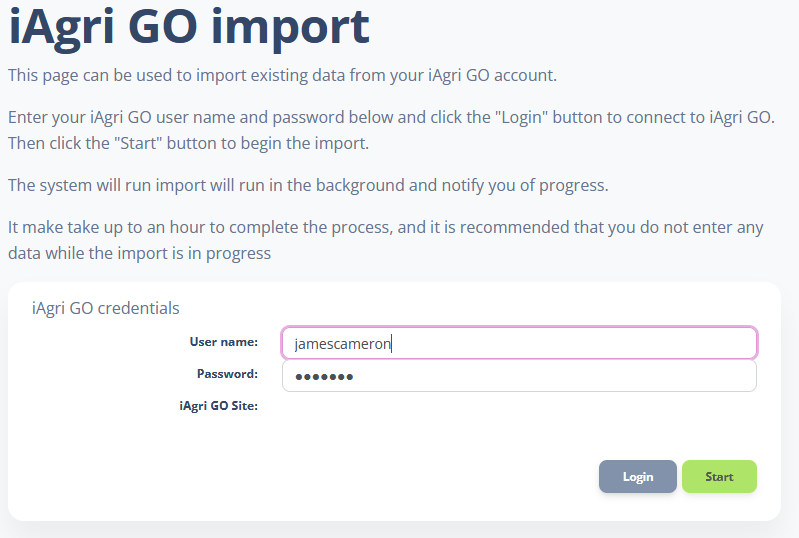
Enter the user name and password for your iAgri Go account, and click the Login button. The system will attempt to login to your account. If this is successful, iAgri GO site name will be displayed.
After a successful login the “Start” button will be enabled. Click this button to begin the import.
The system will run the import in the background and display the progress and status messages as it goes:
The status will also be displayed as notification messages.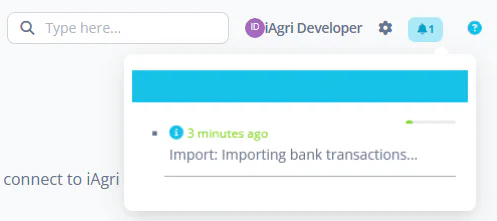
It is safe to navigate away from this page or even log out of the system, although it is advisable not to enter any data while the import is running.
It may take up to an hour for the import to complete. Progress and status will be updated in the notification area.