Title here
Summary here
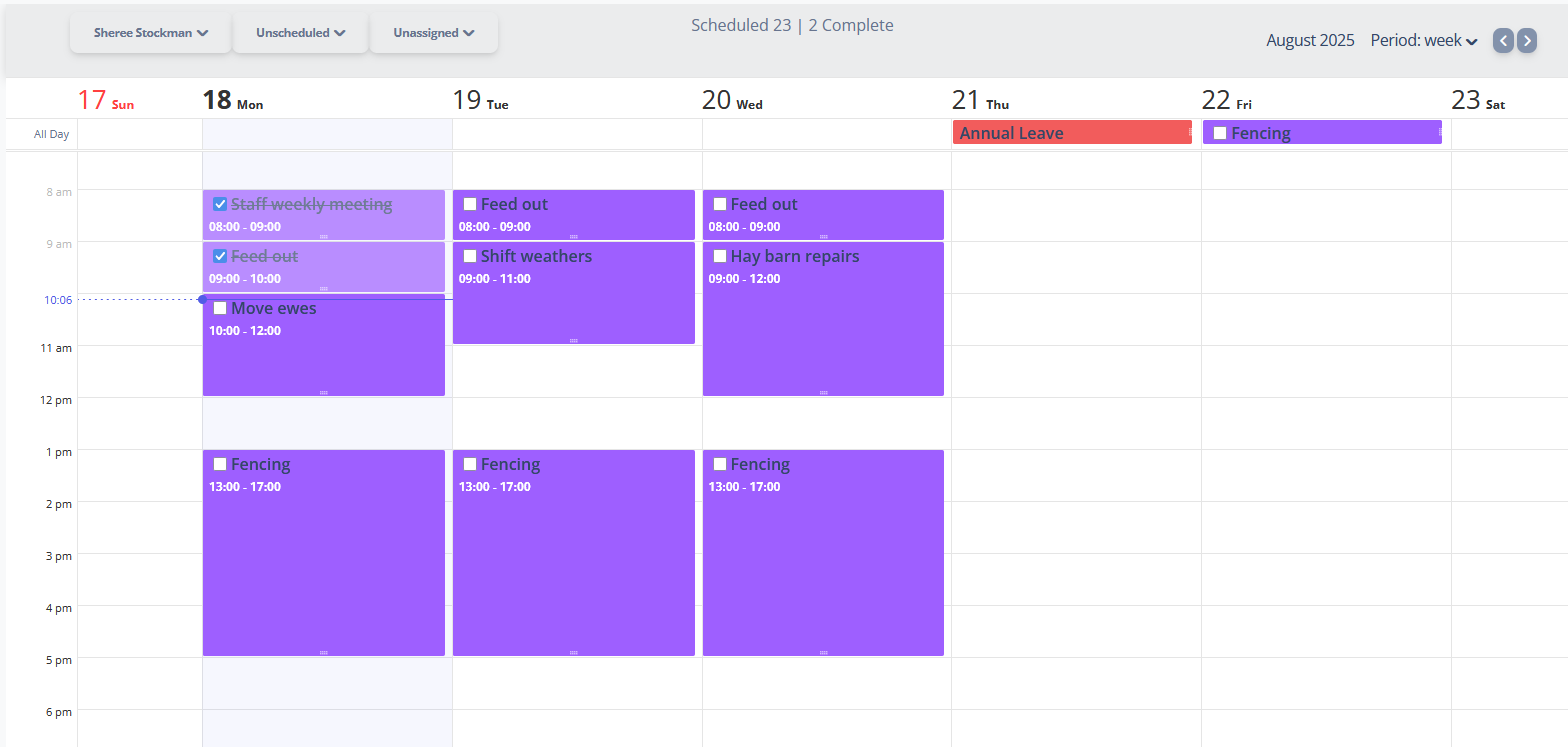
iAgri enables you to manage staff resources with a user-friendly calendar based scheduling system. Tasks can be created, assigned and scheduled by clicking and dragging on the calendar interface. This will display the Scheduled Task Dialog for you to enter task details.
Both Scheduled Task and Leave Date records for the selected user are displayed in the schedule. Tasks can be marked complete by clicking on the check box next to the task title.
To quickly copy a task to different time slot, hold the Control key down on your keyboard and then drag-and-drop an existing task to a new slot.
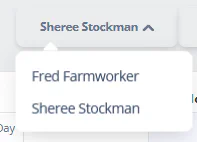
If you have permissions to view other user’s schedules, the User Selection drop-down will display a list of users which clicked. Selecting one of the users will load the schedule for that user.
The tasks lists section of the schedule page contains 2 drop down lists of tasks that are available to be scheduled.
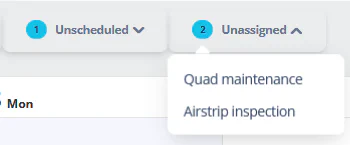
Selecting one of the tasks from either if the lists will display the Scheduled Task Dialog for you to complete assignment and/or scheduling of the task.
Tasks that have be specified as All Day tasks in the Scheduled Task Dialog will be displayed in this section of the calendar.
Tasks that have not been specified as All Day tasks in the Scheduled Task Dialog will be displayed in this section of the calendar.
The Navigation section enables you change between the different views of the schedule and specify the date range to display.
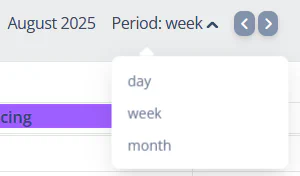
The schedule view can be displayed as a single day, week or month. The left and right arrows will move the schedule date range back or forward one period.
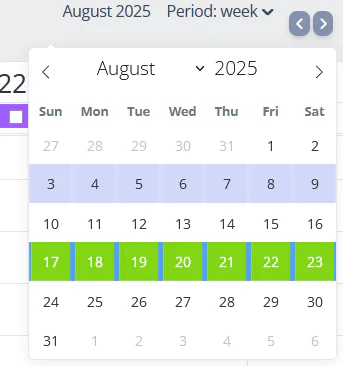
Clicking on the date display will show a date picker to enable a new date range to be specified.
The Hours Summary displays a total of the hours of work scheduled and completed for the current view.